Four ways to add an activity
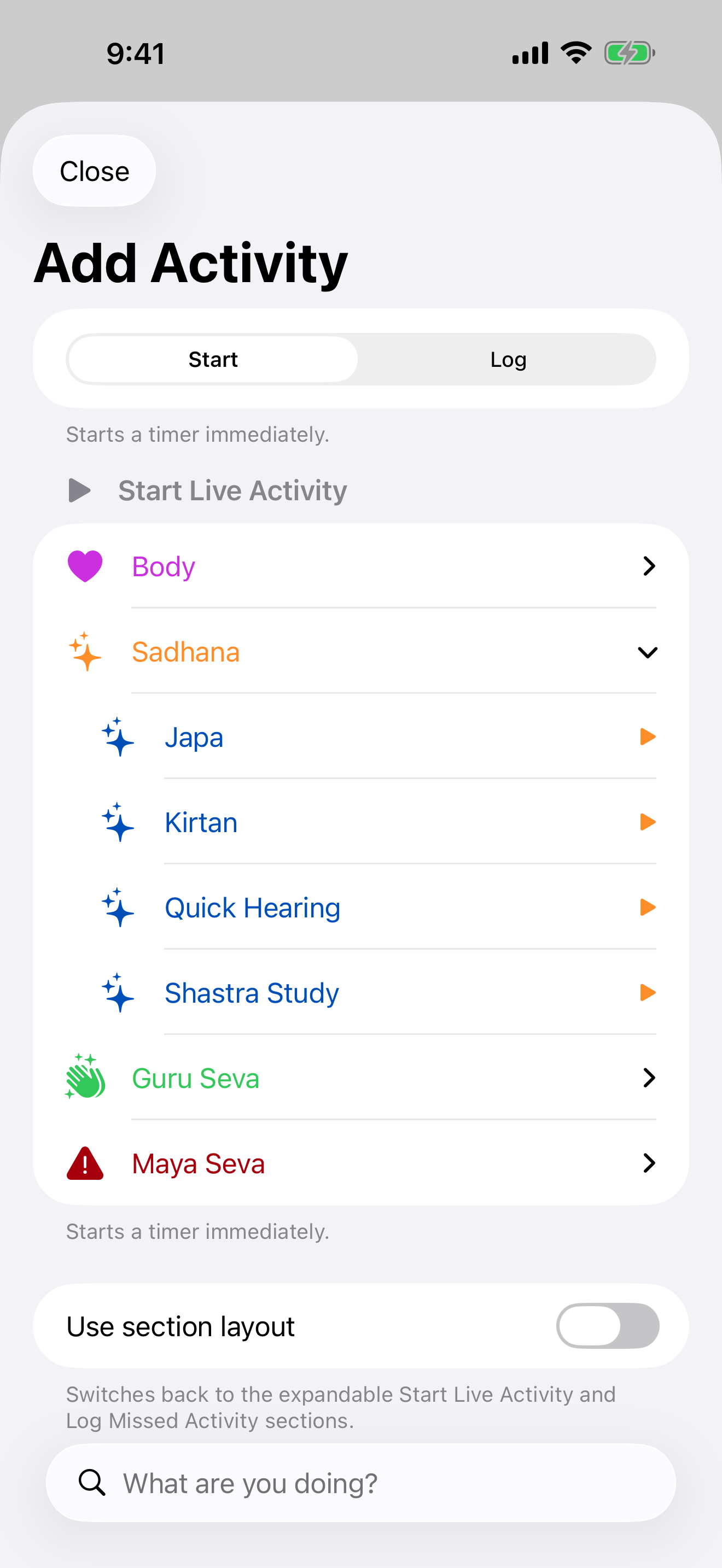
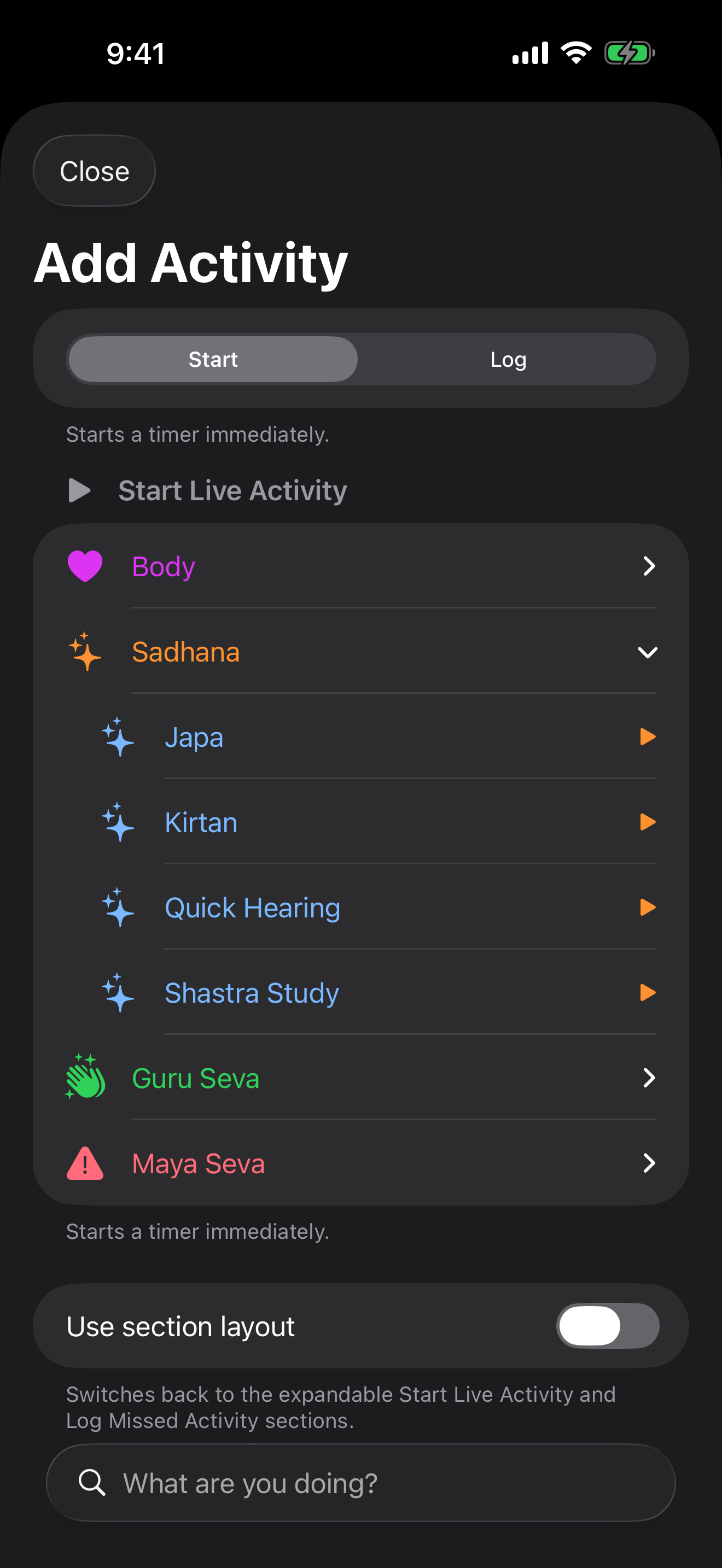
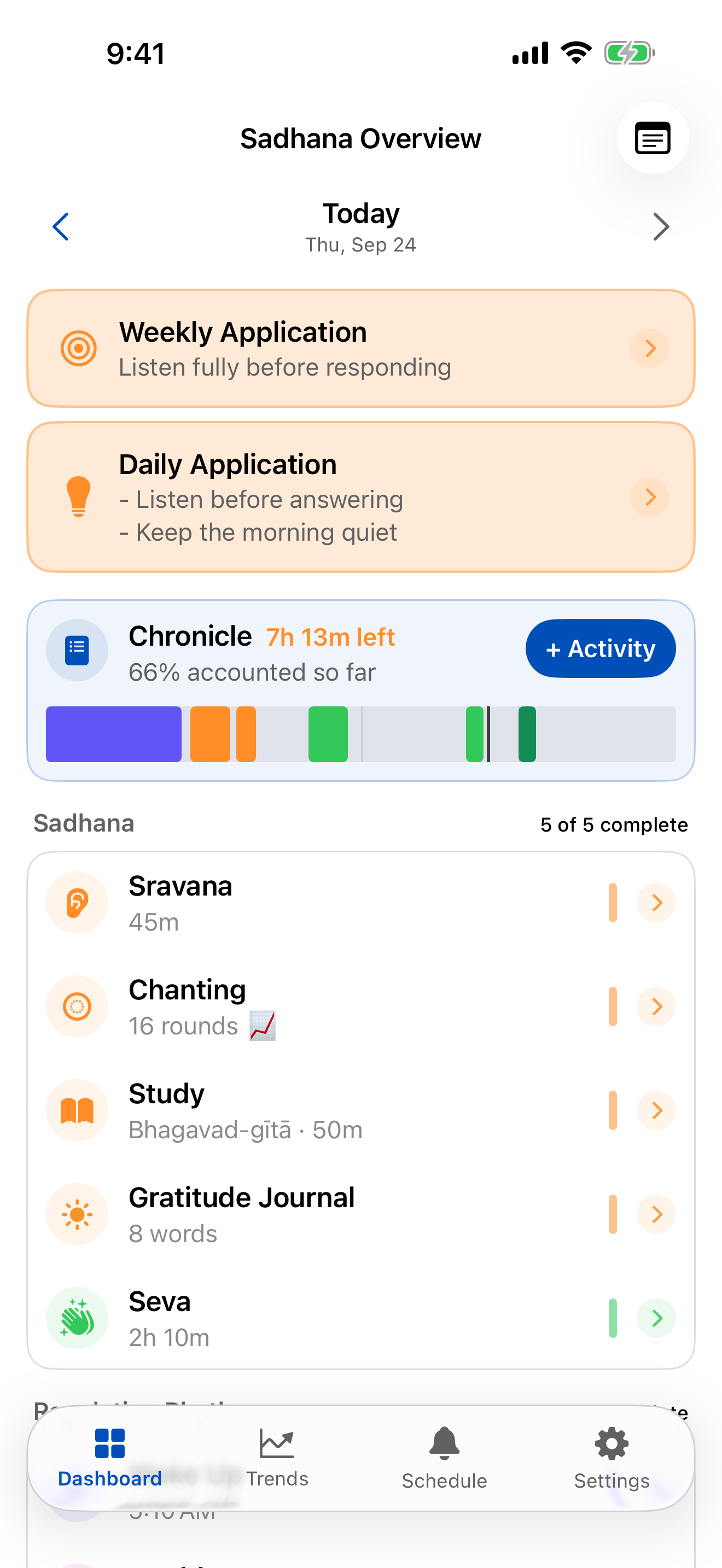
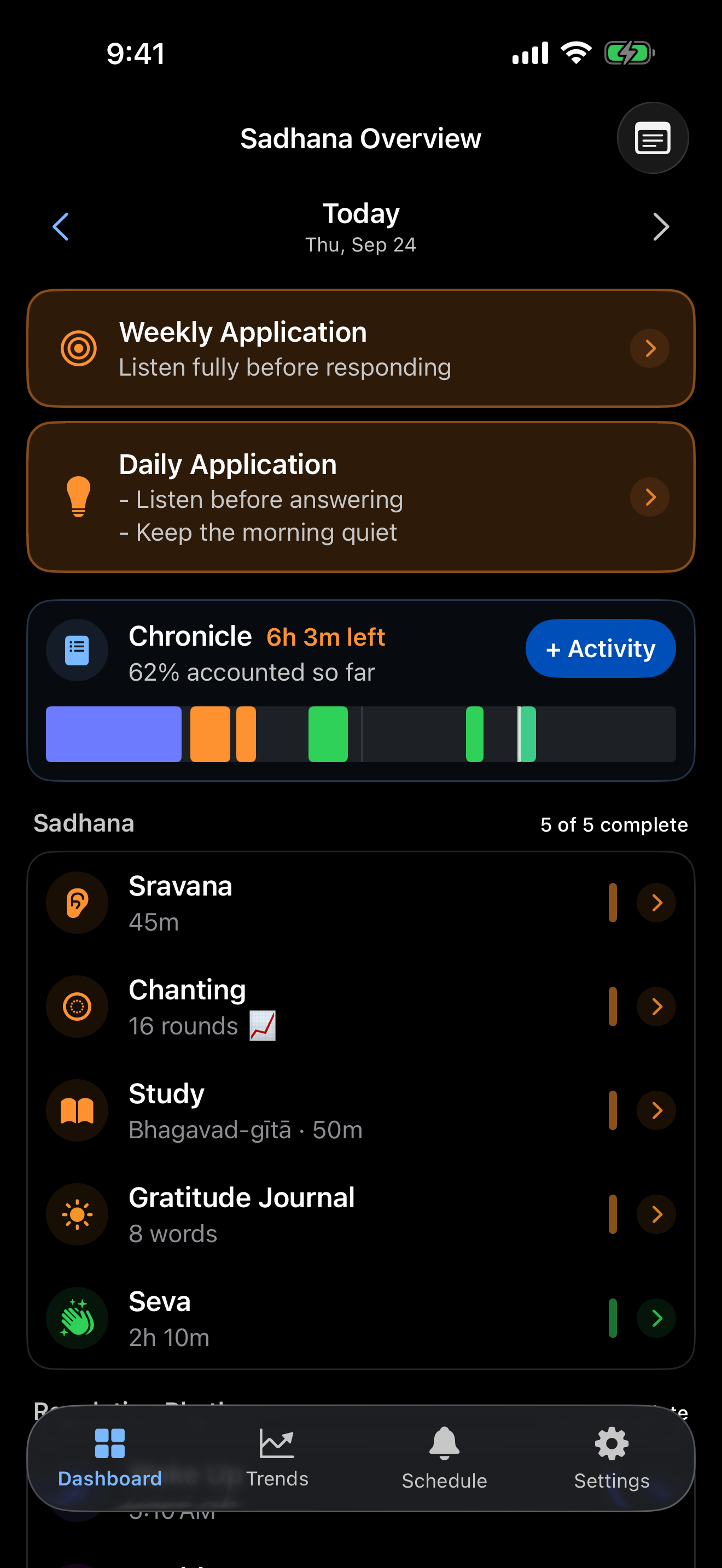
About to practise? Open the practice and tap Start, or tap + Activity on the Dashboard.
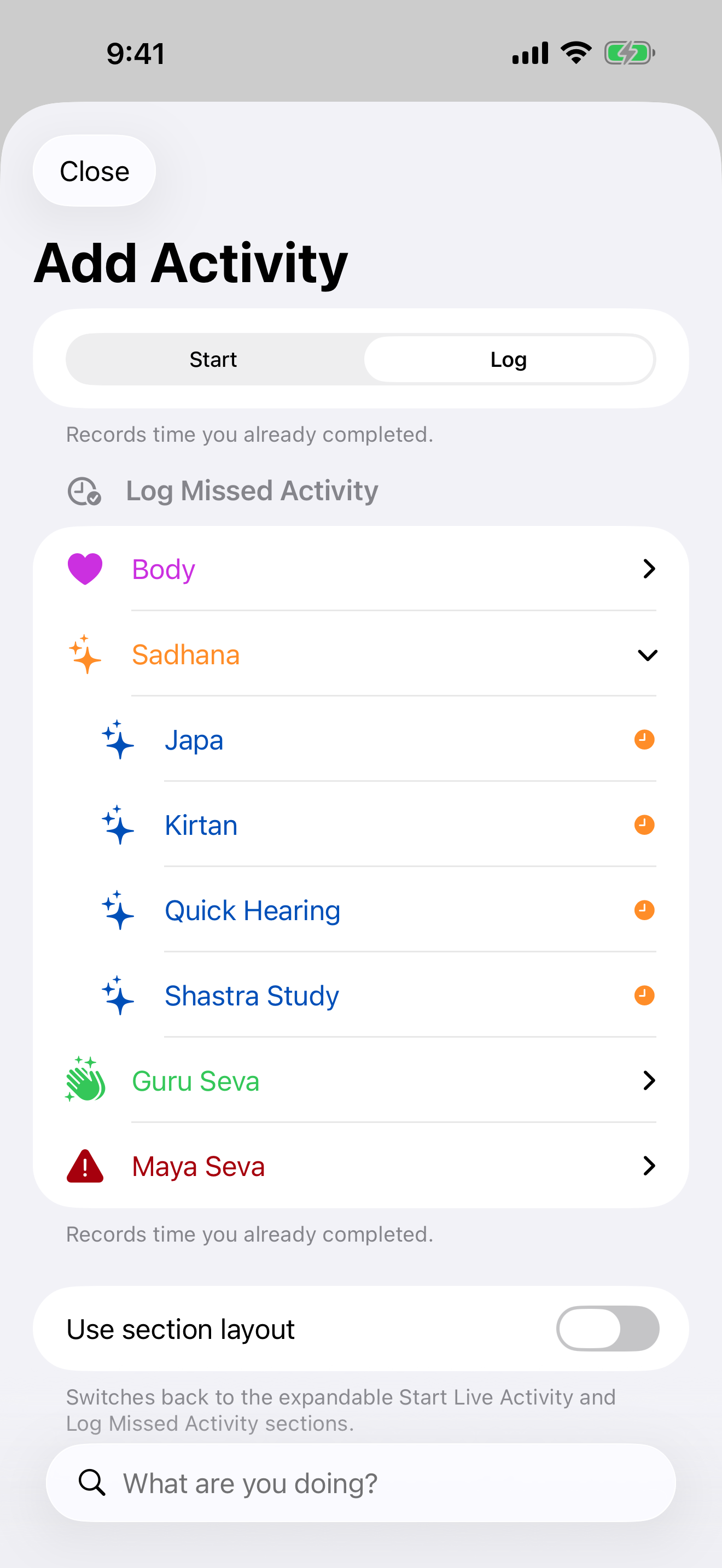
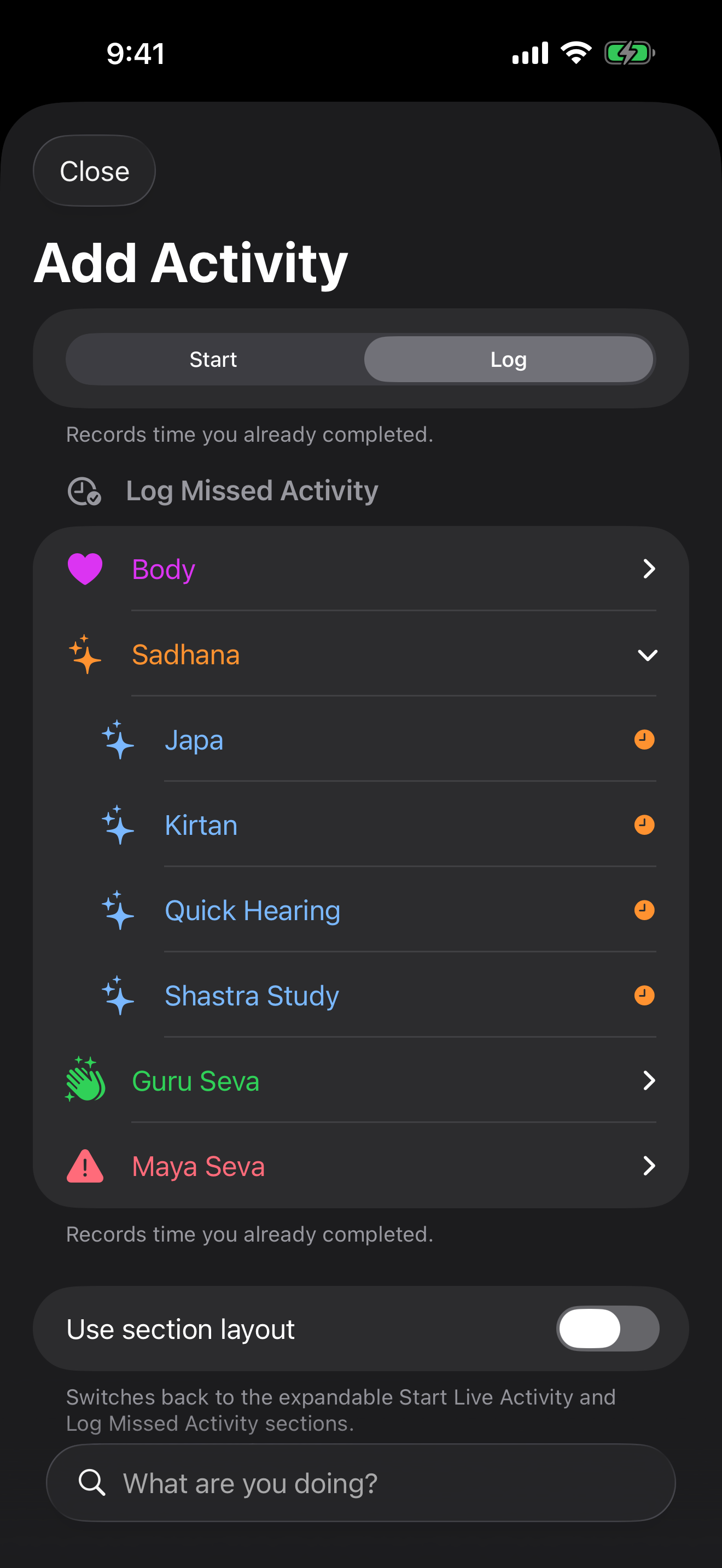
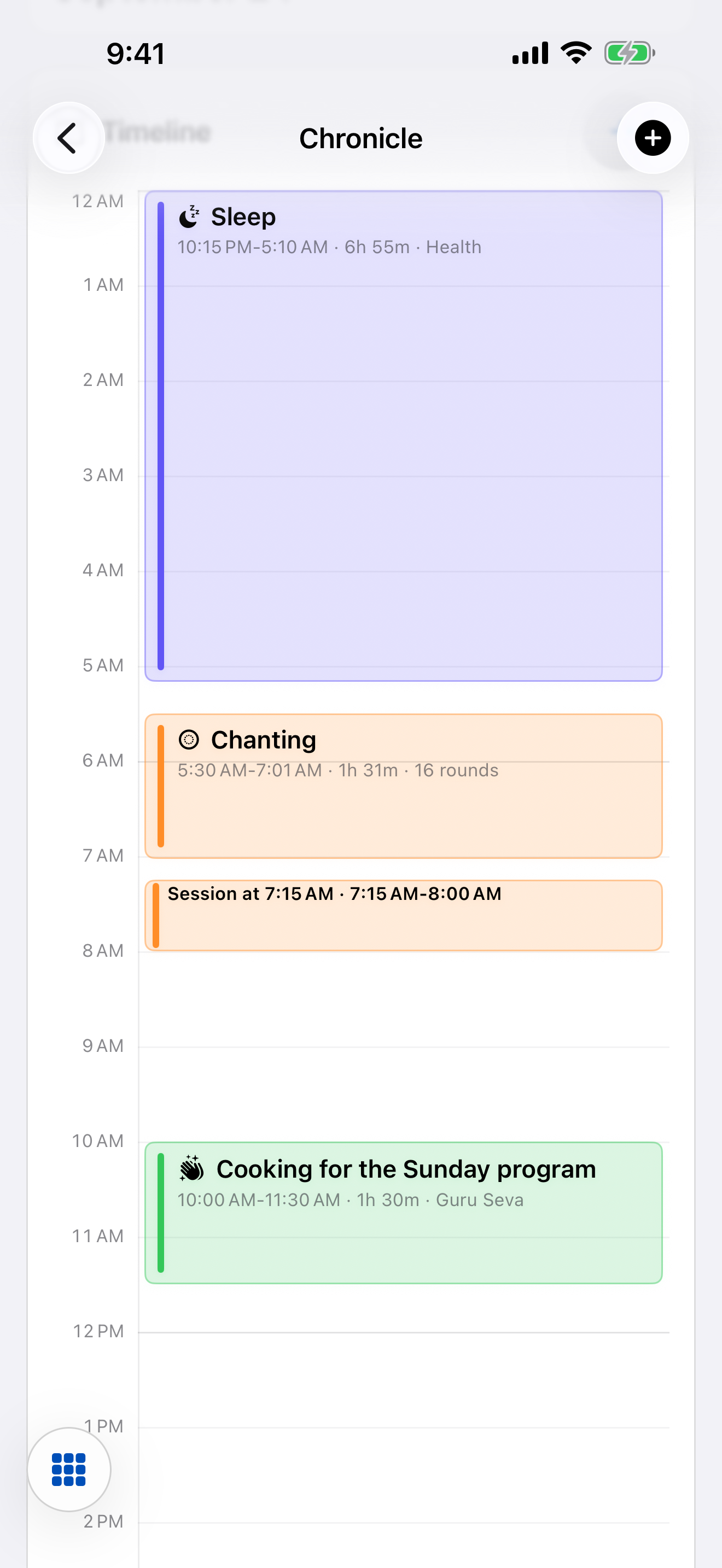
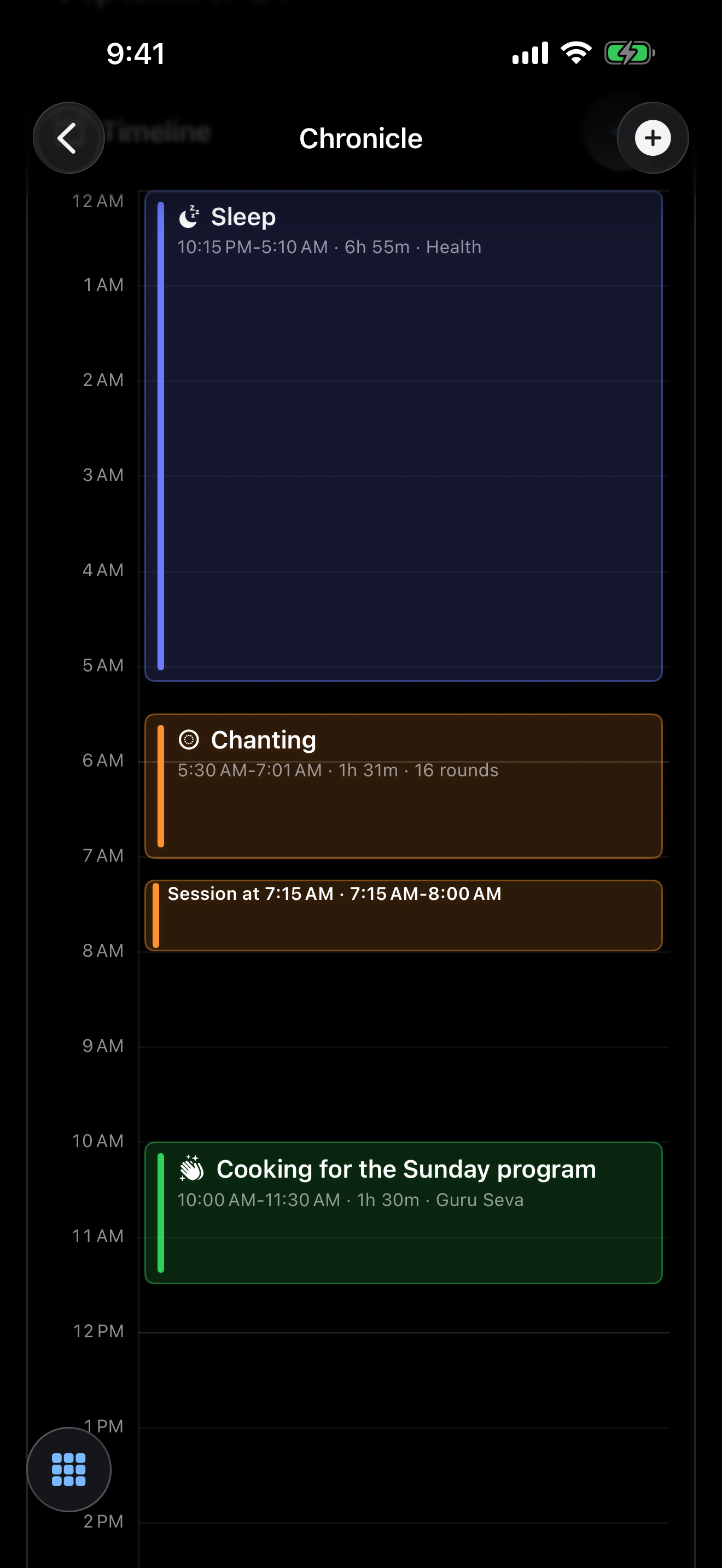
Already done? Tap + Activity, then Log, or tap the time on Chronicle's timeline.
Where you can start
1 · From the Dashboard
2 · From Chronicle
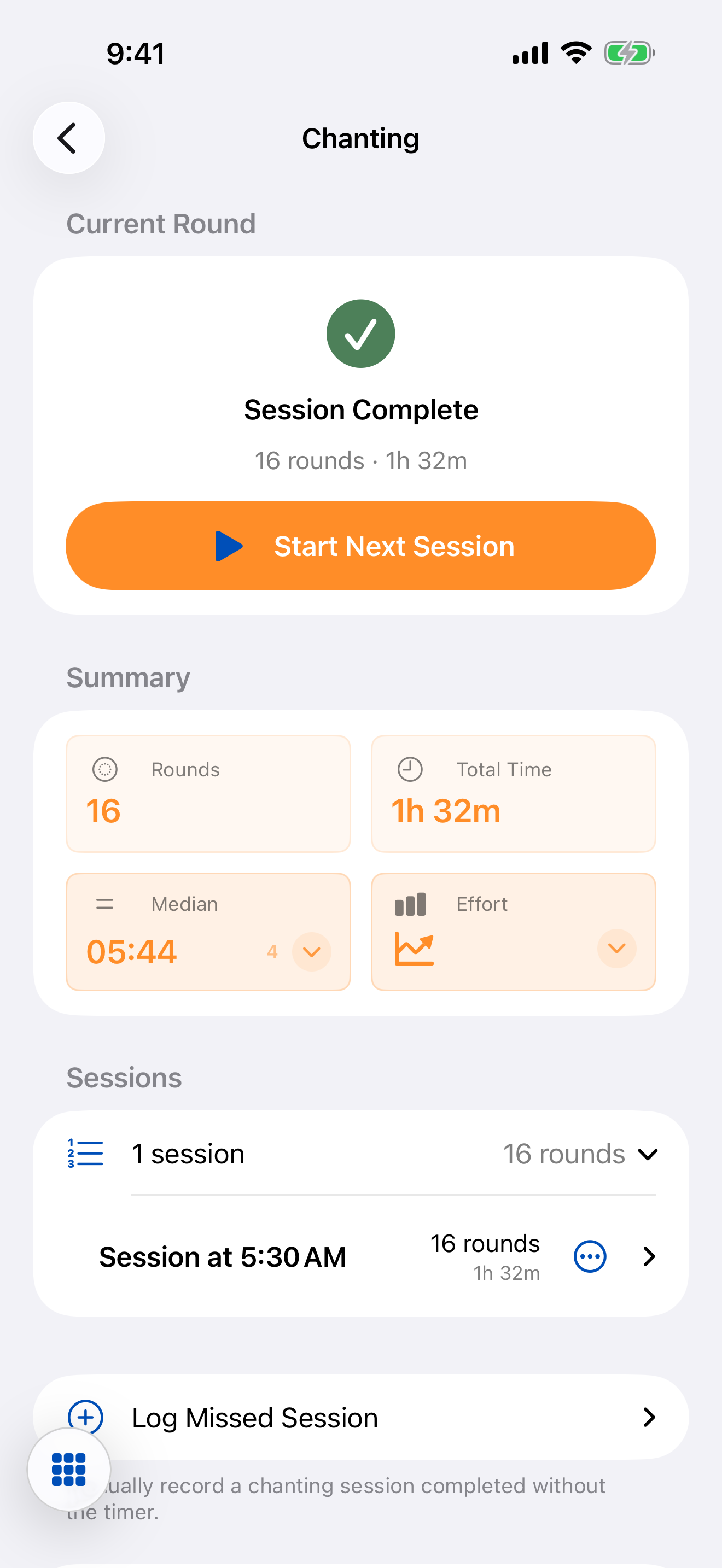
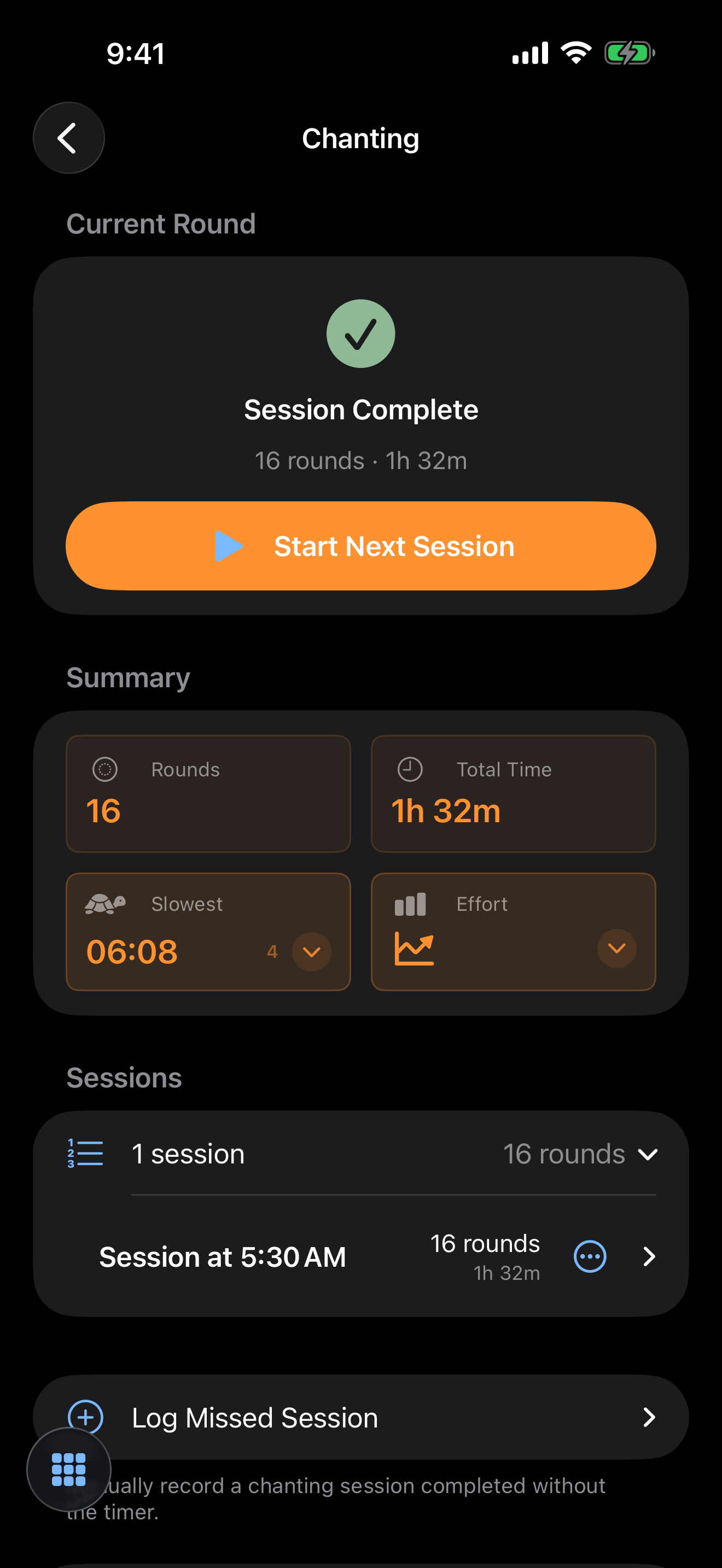
3 · From the practice's own screen
4 · From Siri or a shortcut
Steps
1 · From the Dashboard
2 · From Chronicle
3 · From the practice's own screen
4 · From Siri or a shortcut
Good to know
- You can add sessions for today and the two days before.
- A timer can only be started for today. Until 6 a.m., you can still start one for the day before.
On other devices
On Android, the Dashboard button is called Add Activity.
It opens one form for a name, the minutes, and start and end times if you want them.
There's no Start or Log choice on that form, and Chronicle's Add activity button opens the same kind of form.
On Android, Chronicle has its own tab at the bottom of the screen.
Android's hearing shortcut is called Start Sravana; the button inside the app says Start Hearing.
On Mac, Siri can't start a session.
On Android, the Chanting button in Quick Settings and the widget's Chant button only open the chanting screen.
Still stuck? Write to hello@cleanlogic.solutions — you can attach the app's support log.